
aShell - Your Local ADB Shell
sunilpaulmathewTools
4.312.00 Reviews
- Version
- v0.26
- Installs
- 10.00K
- Age Rating
- Everyone
Screenshots

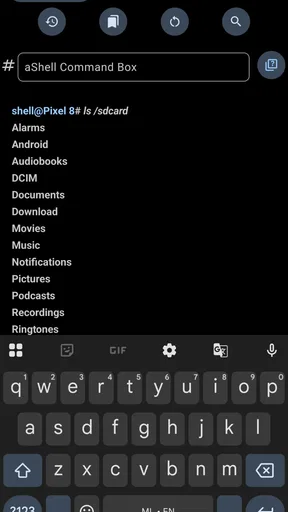
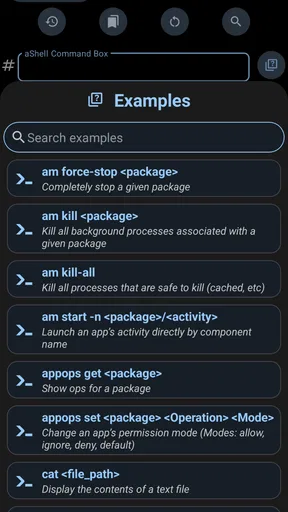
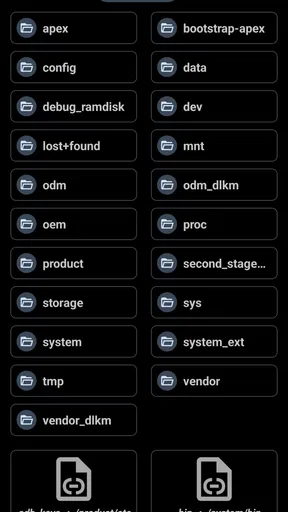
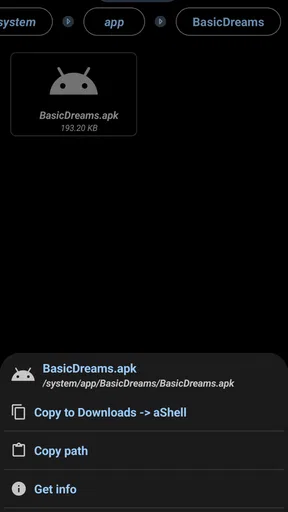
Our Review of aShell - Your Local ADB Shell
 Analysis by Appyee
I like the idea behind aShell - Your Local ADB Shell most when it solves a small, specific problem: I want to run an ADB shell command on my Android device, but a computer isn’t nearby. That convenience is appealing during the first few days, especially if you already know what a command does. The more useful question is whether this kind of access becomes part of a regular routine or stays an occasional tool I open only when something needs attention.
Who benefits from keeping it installed
This is a focused Android tools app for people who are comfortable thinking in commands. If you troubleshoot your own phone, test apps, or already use ADB from a desktop, having a way to work directly on the device can be a practical addition. It suits someone who understands why they are running a command and can judge its effect, rather than someone looking for a guided phone-cleanup or device-management app.
I would also consider it for a developer or technically curious user who occasionally needs to inspect or adjust something while away from a workstation. The benefit is not that a phone suddenly replaces every desktop workflow; it is that a small intervention may not need to wait until you get back to your computer. For longer sessions, careful editing, or work involving several devices, a computer remains easier to manage.
A routine that makes the convenience real
Imagine noticing an issue while using your phone away from home: you want to check a device setting or repeat a command you have used before. With aShell, you can open the app, use a familiar command, and avoid setting up a computer just for that brief task. That is a believable everyday reason to keep it around, not a promise that every Android problem can be fixed from the handset.
Command history can make this routine smoother, but I would treat it as a reminder of what you ran, not as proof that a command is safe to repeat. Before reusing an entry, I would read it again and consider whether the device’s current state has changed. A command that was appropriate during one troubleshooting session may not be right the next time.
There is another useful habit here: keep a short personal note explaining why you use a less familiar command. History can help recover the exact text, while a note helps you remember the intent and any conditions that mattered. That distinction is especially valuable when you return to an occasional task months later and no longer remember the context.
How it compares with familiar alternatives
The usual alternative is running ADB from a computer. That route is more comfortable for sustained work: a physical keyboard makes commands easier to review, and a larger screen helps when you are comparing output or juggling several steps. aShell’s advantage is convenience for work that is brief and device-local. I would choose based on the task, rather than treating either approach as a universal replacement for the other.
It is also different from a graphical settings or maintenance app. Those tools tend to present a limited set of actions in menus, which is friendlier when you do not know the underlying command. A shell gives more direct control, but also asks you to supply the knowledge and judgment. If your aim is simply to change a common setting and you do not want to learn command syntax, a guided tool or Android’s own settings is likely a better fit.
Nor would I confuse a command interface with full automation. Being able to enter commands is not the same as having a dependable scheduled workflow. I would use the app for deliberate, on-demand actions and avoid building a routine around assumptions about tasks running unattended. That keeps expectations aligned with what the app is for: direct command use from the device.
Small checks that reduce avoidable mistakes
When I use a shell, I pause before commands that change anything. I check the target, read the command one more time, and separate inspection from modification where possible. A quick diagnostic command is generally a more comfortable starting point than copying a command from an unfamiliar forum post and running it without understanding its effect.
For repeat work, I would keep commands short and use history selectively instead of treating it as a script library. If a task grows into a chain of dependent steps, moving to a computer can make it easier to review the sequence and catch a typo before it matters. The phone-first approach is at its best when the job is small enough to understand at a glance.
Compatibility is another practical consideration. The app is intended for Android, and the device’s own software and configuration can affect what a given command can do. I would not assume that a command working on one phone will behave identically on another. If a result differs, that may call for checking the command and device context rather than repeatedly trying variations at random.
Getting Started with aShell
First things first, let’s talk about setting up aShell. Installing it is a breeze. Head over to the Play Store, hit download, and you’re good to go. It’s like carrying a mini terminal in your pocket, ready to execute commands whenever you need.
Once installed, you’ll be greeted with a clean, user-friendly interface. No frills, just functionality. The app is designed to be intuitive, even if you’re not a seasoned developer. It’s perfect for both beginners and advanced users who want to manage their devices efficiently.
Features That Stand Out
Now, let’s get into the nitty-gritty of what makes it useful. One of its standout features is the ability to run shell commands directly on your device. This means no more connecting to your PC every time you want to perform a task. It’s like having your cake and eating it too.
Another cool feature is the app’s ability to save command history. This is a lifesaver for those repetitive tasks you find yourself doing often. You can easily scroll through past commands and re-run them with a simple tap. Talk about convenience!
Security is also a top priority with this app. You’ll find options to encrypt your data and manage permissions, ensuring your device stays protected while you’re executing commands.
Real World Use Cases
So, how can you actually use it in your daily tech life? Let’s say you’re a developer testing an app. Instead of juggling between your device and computer, simply use it to push and pull files, manage logs, and execute scripts right from your smartphone.
Or maybe you’re a power user looking to automate tasks. With it, you can easily set up scripts to run at specific times or conditions. It’s like having a personal assistant that never takes a day off.
Why You’ll Love It
Alright, let’s get personal. Why do I like this tool? It’s all about freedom and flexibility. No more being tied to a desk when you want to tweak your device. The app gives you the autonomy to manage your Android device on your terms.
Plus, the simplicity of the app is a huge win. Whether you’re a tech newbie or a seasoned pro, you’ll find it easy to navigate and use. The developers have done a stellar job keeping the interface straightforward without sacrificing functionality.
Room for Improvement
No app is perfect, and this one is no exception. While it’s packed with features, there’s always room for improvement. Some users have noted that the app could benefit from more detailed documentation or tutorials for beginners. A little extra guidance would go a long way in enhancing the user experience.
Additionally, while the app supports a wide range of devices, there’s always the odd case where compatibility issues arise. Regular updates and community feedback can help iron out these quirks and make the app even better.
How it holds up over time
For a tool like this, long-term value comes from having a few recurring jobs, not from opening it every day. I can see it earning space on a phone if I routinely inspect a setting, revisit a known troubleshooting command, or need to act away from my desk. If I only experiment with shell commands once, the novelty may fade quickly and the app may become something I forget about.
Its maintenance burden is relatively modest in concept: keep track of commands you trust, remember what they are intended to do, and check that they still make sense for the device in front of you. The app cannot replace that judgment. A command history is convenient, but old entries can become clutter if I save every experiment and never revisit them.
The price is $0.99, so I would decide based on likely use rather than treating it as an impulse download. The app is rated for Everyone, and its current version is v0.26; the developer is sunilpaulmathew. It has a 4.3 average from around 160 ratings, with 10K+ installs. Those figures give a sense of its audience, but they do not tell me whether it fits my own comfort level with command-line work.
It runs on Android 7.0 and later. That gives it a broad baseline, but the operating system minimum alone does not guarantee that every command will behave the same way across devices. For someone considering it, the sensible first step is to try a harmless, familiar command and learn how the app behaves before relying on it for anything consequential.
When I would choose something else
I would skip this if I want a visual walkthrough, have no interest in learning what commands mean, or need a polished workflow for extended development. In those cases, the phone’s built-in settings, a dedicated graphical utility, or desktop ADB is a better match. A shell can save setup time, but it can also make a mistaken action easier to enter, so convenience is not automatically the same as safety.
The fatigue point is the knowledge gap: the interface may be straightforward, while the command itself still requires care. Beginners can benefit from learning gradually, but should not mistake an easy-to-use command box for a guided tutorial. I would start with a clear, low-risk purpose and pause whenever the expected result is uncertain, rather than treating trial and error as a troubleshooting strategy.
There is also a trade-off between spontaneity and review. Running one known command on the phone is quick; inspecting a long output or preparing a multi-step sequence is less comfortable on a small screen. When the task becomes complex, moving back to a computer is not a failure of the app. It is simply choosing the tool that gives me a better view and more room to verify each step.
Final Thoughts
In a nutshell, aShell - Your Local ADB Shell is a game-changer for anyone looking to manage their Android device more effectively. It’s like having the power of a computer in the palm of your hand. Whether you’re automating tasks, testing apps, or simply exploring the world of ADB commands, this app has got you covered.
So, if you’re ready to take control of your Android device in a whole new way, give it a spin. It’s a small download with a big impact, and I promise, you won’t look back.
My long-term verdict
I would recommend it to Android users who already have a reason to run shell commands and value being able to handle a quick task without a computer. It is less compelling for someone who merely wants a general-purpose phone utility, or who expects menus to explain each operation. The best case for keeping it installed is a repeatable, understood workflow—not the vague hope that a shell will solve any problem that comes along.
That is why its lasting appeal depends on habit. If command history helps me return to a task I genuinely perform, the app remains useful; if I cannot name a real recurring use, a desktop setup or a simpler settings tool may serve me better. I like the freedom it offers, but I would keep that freedom paired with deliberate checks and realistic expectations.
Verdict
Strengths of aShell - Your Local ADB Shell
- Easy to use with a clean interface.
- Supports multiple device connections.
- Allows script automation for tasks.
- Offers quick access to device logs.
- No need for root access.
Limitations of aShell - Your Local ADB Shell
- Limited features for advanced users.
- Occasional connectivity issues.
- Ads can be intrusive at times.
- Requires a stable USB connection.
- Limited support for older devices.
Similar Picks in This Category
View All
Google LLC4.0

Gboard - the Google Keyboard
Google LLC4.5

Google Play services
Google LLC4.3

Google Play Store
Google LLC4.9

Files by Google
Google LLC4.5

SHAREit: Transfer, Share Files
Smart Media4U Technology Pte.Ltd.4.3
Frequently Asked Questions
What is aShell and how does it work?
aShell is an Android application that provides users with a local ADB (Android Debug Bridge) shell on their device. It allows users to execute ADB commands directly from their phone without needing a PC. This is particularly useful for developers and advanced users who need to troubleshoot or modify system settings on their Android devices.
Is aShell safe to use on my device?
Yes, aShell is generally safe to use, but it requires root access to execute certain commands. This means you should ensure your device is properly rooted and that you understand the potential risks involved with granting root permissions. Always back up your data and proceed with caution when using ADB commands.
Do I need a rooted device to use aShell?
While aShell can perform some functions without root, many of the more advanced ADB commands require root access. If your device is not rooted, aShell’s functionality will be limited. Rooting your device can void warranties and carry security risks, so it should be done carefully.
Can I use aShell without a computer?
Yes, aShell is designed to be used directly on your Android device, eliminating the need for a computer to run ADB commands. This makes it convenient for users who wish to manage and troubleshoot their devices on the go, though some commands might still require additional tools or scripts.
What are the advantages of using aShell over traditional ADB tools?
aShell offers the convenience of executing ADB commands directly from your Android device, which is ideal for users who need quick access to debugging tools without a computer. It also provides an interface that is user-friendly for both beginners and advanced users, making it a versatile choice for managing device settings and troubleshooting issues.
